Northbrace
Jira remembers your sprint history. It just will not let you search it.
Sprint history is a Jira app. It writes what happened into nine ordinary Jira fields, so you can query it, sort by it, and put it in a column.
67% of Sprint 24 was planned.
12 of 18 work items were in it when it started. 6 arrived after that, and 6 more were taken out before it ended.
- there at the start
- arrived after it began
Two work items were also taken out of Sprint 22 before it ended, and one out of Sprint 23. They left, so they are counted in none of the bars above, and no built in report will tell you about them.
Sound familiar
Three things said in every sprint review
-
Hang on. When did this get into the sprint?
Somebody added it on day six. Nobody can prove it. -
We have pulled this ticket out three times now.
Or four. The change log knows and nobody is going to read it. -
How much of last sprint was actually planned?
The honest answer is a shrug, so the number in the retro is a guess.
Jira recorded all of it, exactly dated, in each work item's change log. What is missing is any way to ask for it.
One work item, two sprints, three events
| When | What Jira wrote down | Searchable |
|---|---|---|
| 14 Jul, 10:31 | Added to Sprint 12 Six days after Sprint 12 had already started. | no |
| 21 Jul, 09:02 | Taken out of Sprint 12 Three days before that sprint ended. | no |
| 28 Jul, 14:15 | Added to Sprint 13 Carried into the next sprint, where it was finished. | no |
Today
How teams get by now
Four routes, all of them real, all of them ending in the same place.
The sprint report Jira gives you
Free, already there, and it does show what was added after the sprint started.
- Stops at
- One sprint at a time. You cannot filter it, sort it, save it, or ask it about the work item that has been pulled out of four different sprints.
An add on that ships JQL functions
Gives you a query that finds the work items. This is the closest thing that exists.
- Stops at
- A function hands back a set of work items, not a value. So there is nothing to put in a column, nothing to sort by, and nothing to see on the work item itself.
A reporting or business intelligence tool
Powerful, and it can genuinely compute sprint scope change.
- Stops at
- You go to the report. The report never comes to your backlog. And it is a tool you build things in, priced like one.
A spreadsheet and somebody's memory
Costs nothing and answers exactly the question you thought to write down.
- Stops at
- The next morning.
All four make you leave the place where you work. The backlog, the board and the filter you already have are where this question comes up, and none of these can answer it there.
Instead
Nine fields, and nothing new to learn
They behave the way every other field in Jira behaves. Anybody on the team who can use Jira search can use them on the day the app is installed, and nobody has to be taught anything.
The same work item, after the app has read it
What Jira records
- 14 Jul, 10:31 Added to Sprint 12, six days after it started
- 21 Jul, 09:02 Taken out of Sprint 12
- 28 Jul, 14:15 Added to Sprint 13
What the app writes
- Sprint removals1
- Removed from sprintSprint 12
- Last sprint removal21 Jul 2026
- Added after sprint start14 Jul 2026
- Sprints in total2
- All sprintsSprint 12, Sprint 13
Ask
Queries that had no answer before
"Sprint removals" > 0
Every work item that has ever been pulled out of a sprint.
"Sprint removals" >= 2
The ones it keeps happening to. This is usually the interesting list.
"Added after sprint start" >= -30d
Everything that arrived mid sprint over the last month.
"Sprints in total" > 3
Work that has been carried, and carried, and carried.
project = ABC AND "Removed from sprint" = "Sprint 12"
What left one named sprint, in one project.
They combine with anything else you already search on. Save one as a filter, sort by it, pin it to a board.
The first query on this page, in Jira
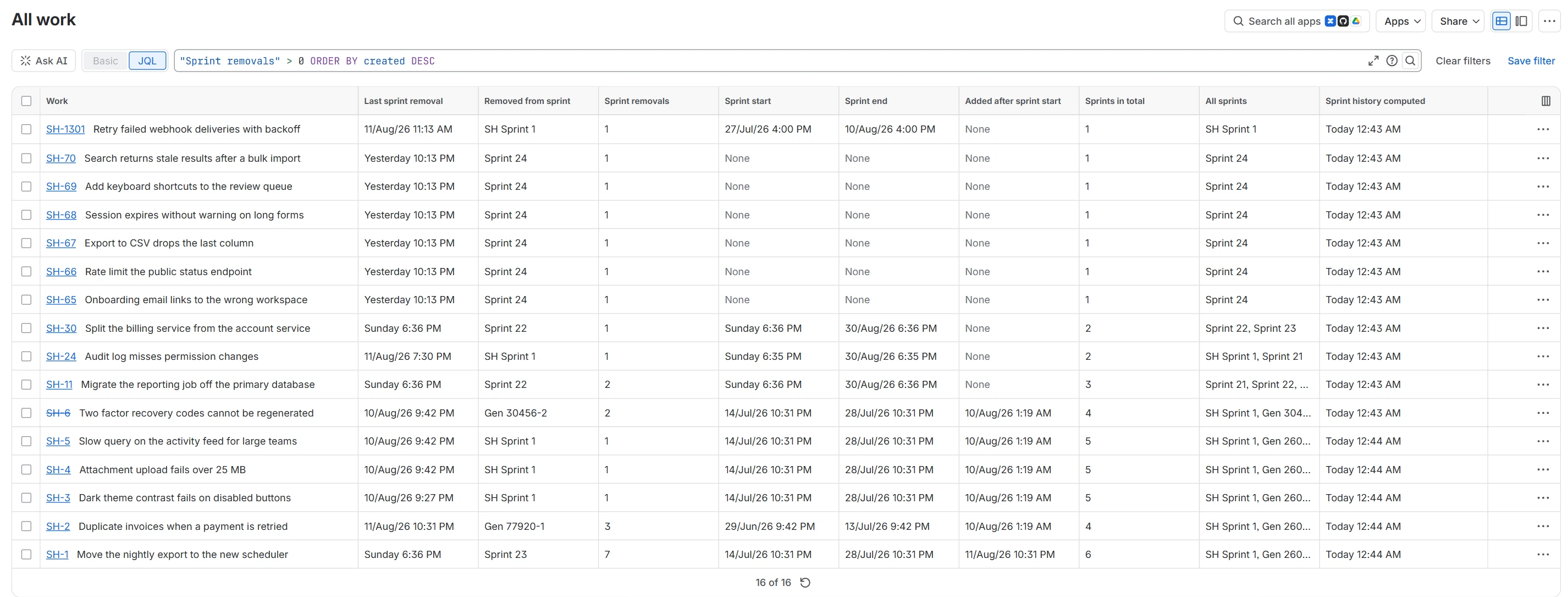
"Sprint removals" > 0 with all nine fields
as columns beside the work items.
Select the picture to open it full size.
Fields
The nine fields
| Field | What it holds |
|---|---|
| Sprint start | When the work item's most recent sprint started |
| Sprint end | When it ended, or is due to end |
| Sprint removals | How many times the work item has been taken out of a sprint |
| Last sprint removal | When that last happened |
| Removed from sprint | The sprint it was last taken out of, by name |
| Added after sprint start | When it was put into its current sprint, if that sprint had already started |
| Sprints in total | How many different sprints it has ever been in |
| All sprints | The names of all of them |
| Sprint history computed | When the app last worked this work item out |
Kept current
Never more than a day old, and it says so itself
Move a work item into or out of a running sprint and its fields are rewritten within about a minute. Everything else is checked once a day.
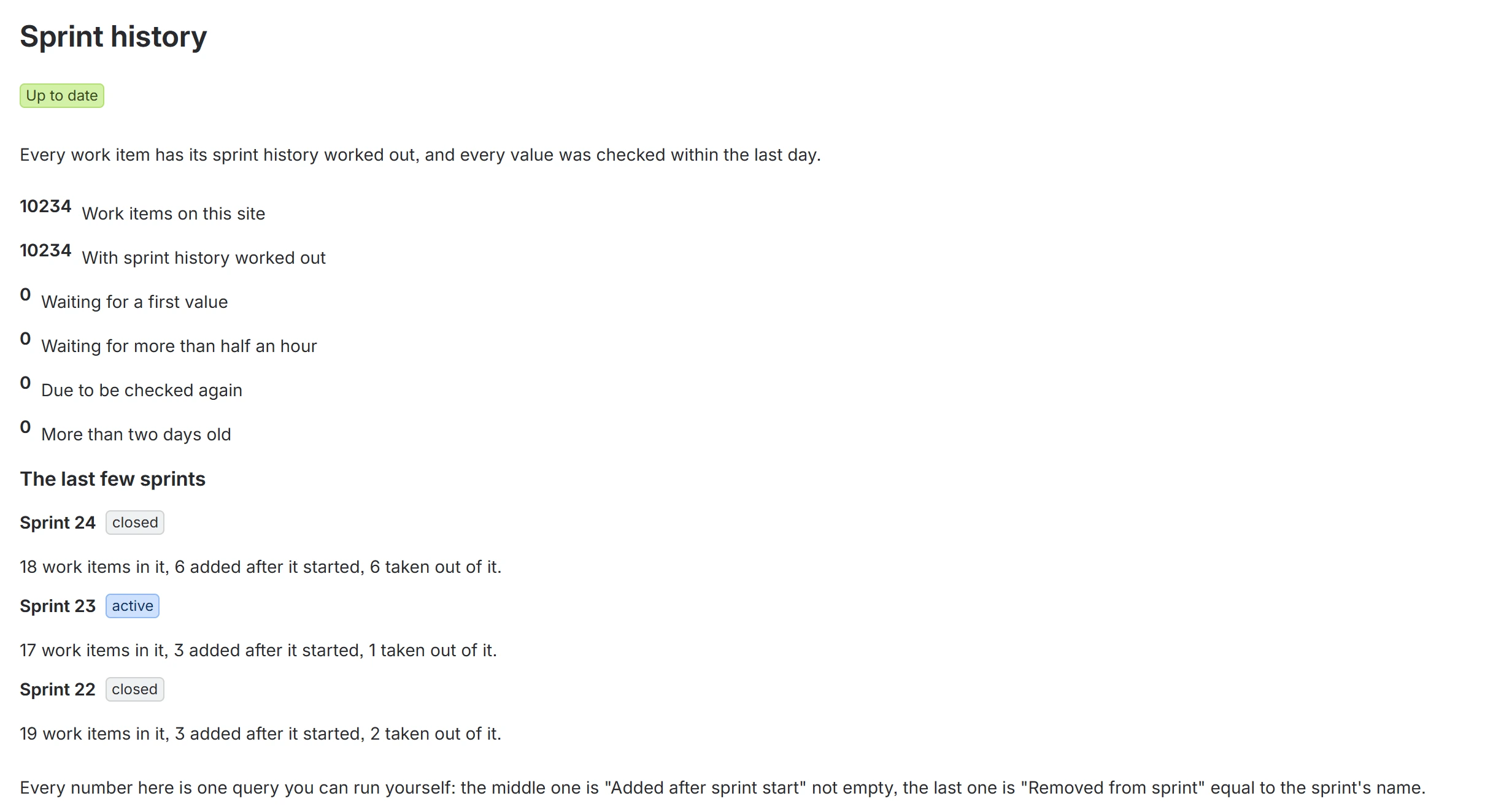
You do not have to take that on trust. The app has a status page of its own: how many work items are worked out, how many are waiting, how far behind it is if it is behind at all, and the query behind every one of those numbers, so you can run them yourself.
Open it from Jira's left sidebar: Apps, then Sprint history. Every user on the site can see it. An administrator can also reach the same page from Jira settings, under Apps.
The status page, once you open it
Setup
One step, and only in team managed projects
Company managed projects need nothing. The fields work as soon as the app is installed.
A team managed project chooses which fields it uses, so somebody adds these nine once:
- Open the project, then Project settings.
- Go to Fields, then Add field.
- Add all nine by name. Jira adds one field per click, so expect nine clicks.
Adding them later loses nothing. The app keeps the values up to date whether or not a project displays them, so the history is already there when you turn the fields on.
To see the fields on the work item itself
In a company managed project they are already there, along with search, filters and columns, with nothing to configure. In a team managed project the nine you added above are searchable straight away; to put them on the work item as well, open Work types, choose a type, and drag them from Fields into Context fields.
Support
Write to a person
One developer builds and answers for this app. Bugs, questions and requests all go to the same place.
support@northbrace.comPlease include your site address and, if it is about a particular work item, its key. Do not send screenshots containing anything confidential. Most of what is needed to diagnose a problem is on the status page shown above.
Privacy
Privacy policy
Last updated 24 August 2026.
Where the app runs
Sprint history is a Forge app. It runs on Atlassian's own infrastructure, inside the Atlassian cloud, and carries the Runs on Atlassian badge. It has no servers of its own, no database of its own, and no third party services behind it.
What it reads and writes
The app asks for two permissions and no others:
- Read Jira work. Work items and their change history, so it can work out which sprints a work item has been in and when it left one.
- Write Jira work. The nine fields listed above, on your own work items, on your own site.
It reads nothing else and writes nothing else. It does not read comments, attachments, user profiles, or any Atlassian product other than Jira.
What leaves your site
Nothing. Every value the app computes is written back into your own Jira site. No work item data, no user data and no site data is transmitted to Northbrace or to anyone else. The app keeps no copy of anything.
Data residency
Because the app stores nothing outside Atlassian, your data stays wherever your Atlassian site keeps it, under Atlassian's own data residency arrangements.
Where personal data does reach us
Two places, and only these two. If you write to the support address, we receive your email address and whatever you put in the message. If you raise a request on the support portal, your name, your email address and what you write are held in the Jira Service Management site we use to answer you, which runs on Atlassian's own infrastructure like the app does.
In both cases it is used to answer you and for nothing else. It is not sold, shared or added to any mailing list. Ask and it is deleted.
Analytics
This page carries no analytics, no cookies and no trackers. The app itself sends no usage data anywhere.
Questions about your data
Write to support@northbrace.com.